
We make heavy use of Remote Desktop web and the HTML 5 client. However – whenever the TLS/SSL certificate is updated, we used to get service desk calls saying people can’t login, with the error “Your session ended because an unexpected server authentication certificate was received from the remote PC”:

The usual “fix” offered is to clear the cache (or use another browser) – people can then login.
This isn’t great if we are manually updating certificates once each year – but it is even worse when using ACME (Let’s Encrypt) certificates. By design these certificates are short-lived – so they will update multiple times a year – causing multiple service desk calls and (understandably) frustrated users.
The cause
In short – caching is the issue – and there is a permanent fix.
On a previous visit, the browser cached the remote desktop broker certificate which should be the same as the certificate presented by the remote desktop server.
However, once the cert is updated – the remote desktop server presents the new cert, which won’t match the old, cached cert for the broker.
Remote desktop doesn’t like that (as it could indicate an attacker-in-the-middle) so blocks the connection.
Checking for the issue
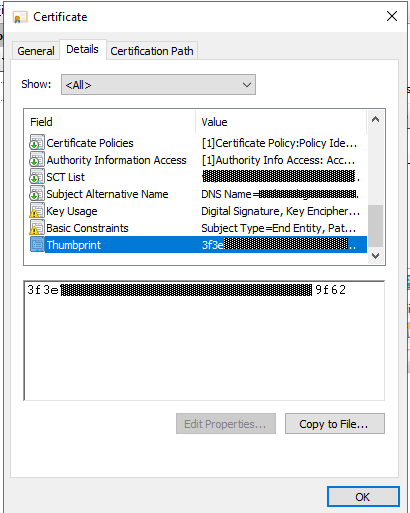
If you look at the certificate thumbprint shown in the error, you’ll see it matches the new certificate just installed on the IIS server, which is what you would expect:
However, if you dive into developer tools in your browser and reload the page and look at the Network table you’ll see that “Brokercert.cer” was served from the local cache:
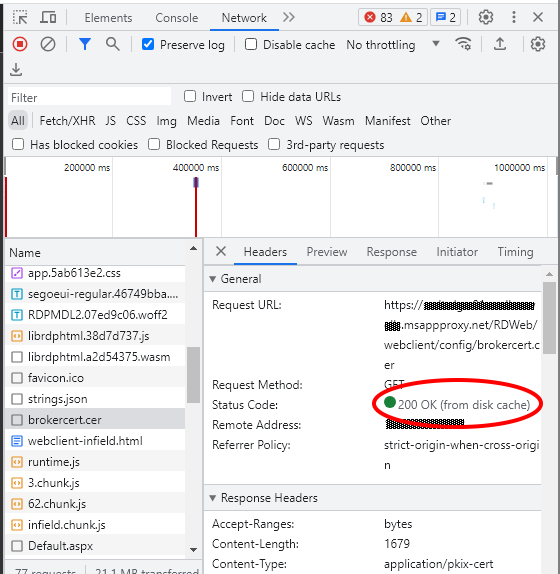
From here you can double-click brokercert.cer to download it, and you’ll see that the thumbprint doesn’t match – this is indeed the old certificate:

Clearing the cache will resolve the issue – but do we really want to be telling users to do this every few months?
The permanent fix
Firstly – if you have users who have already cached the brokercert.cer then this change won’t take effect until the cache expires or they manually clear their cache. But once that’s happened they won’t need to do anything else on the next cert update.
In short – we want to get IIS to tell browsers they shouldn’t cache brokercert.cer.
Yes – this does mean that this cert will be requested every time, but if there’s no change the issuing server will respond with a HTTP 304 “not modified” so the browser will know it can serve from cache. Even if it is re-downloaded it’s only 2k or so – doubtful that anyone will notice.
- On the RD Web Access Server, open IIS
- Navigate to the “config” folder:

- Then, switch to the “Content view” at the bottom:

- In the main pane, right-click on “brokercert.cer” and select “Switch to features view”:

- Then select “HTTP Response Headers”:

- Create a new header, with the name “Cache-control”, and the value “no-cache”:
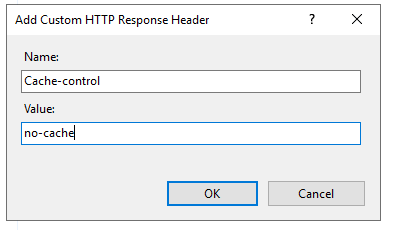
This will tell browsers to not cache this specific file – but won’t affect any other caching.
Checking this works
Once you’ve done this, in developer tools in your browser (network tab) you should see that brokercert.cer has been downloaded with your new “Cache-control” header set as “no-cache”:

If this isn’t showing make sure that it’s not using the previously cached version of the file – you can disable the cache at the top of the developer window to force a re-download, then re-activate the cache.
As noted earlier – if people already have brokercert.cer cached they won’t get the new header on their next visit – so they will need to clear their cache once. They will then get the new no-cache value, and future certificate updates won’t cause any issues.
The only possible future issue is if the cert is updated between a browser’s initial request for brokercert.cer, and being presented with the certificate for the remote desktop server- but a page refresh will resolve that (highly unlikely!) issue.
Summary
We’ve had this implemented for over a year, both on pre-existing RD Web Access servers and freshly set up ones – and this issue has gone away. ACME certificates automatically update, are automatically deployed, and users can just connect – it all “just works” – which is ideal.

 Matt Kirby
Leave a comment